
Driving License Categories in Nepal
Use the table below to find the category for your vehicle. These codes follow the classifications listed in official provincial schedules.
20 categories
| Category | Vehicles covered |
|---|---|
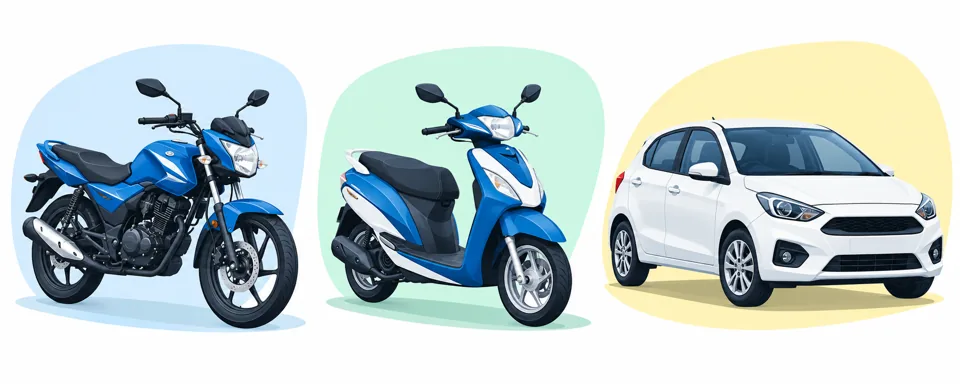
| A | Motorcycle, scooter and moped |
| B | Car, jeep and delivery van |
| C | Tempo and autorickshaw |
| C1 | E-rickshaw |
| D | Power tiller |
| E | Tractor and trailer tractor |
| F | Minibus and mini-truck |
| G | Truck, bus and lorry |
| H | Road roller and dozer |
| H1 | Dozer |
| H2 | Road roller |
| I | Crane, fire brigade vehicle and loader |
| I1 | Crane, mobile crane and crane-mounted truck |
| I2 | Fire brigade vehicle |
| I3 | Loader |
| J1 | Excavator |
| J2 | Backhoe loader |
| J3 | Grader |
| J4 | Forklift |
| J5 | Other equipment listed under this category |
| K | Scooter and moped |
No matching category. Try a vehicle name or code.
Some provincial systems also list additional codes. When applying, check the vehicle description beside the code and choose the correct option available for your application.
Category A vs Category K
Many people get confused between Category A and Category K. Category A includes motorcycles, scooters and mopeds. Category K is listed for scooters and mopeds.
If you want to ride a motorcycle, you need the appropriate motorcycle category. Do not assume a scooter license also allows you to ride a motorcycle. The official category descriptions do not give a general 50cc limit for Category K.
What Is Category B?
Category B is for cars, jeeps and delivery vans. If you have a motorcycle license and now want to drive a car, you can apply to add Category B to your existing license.
You do not need to start as a first-time applicant just because you want another vehicle category. Use the Add Category service.
Minimum Age for a Driving License in Nepal
The DoTM application instructions give the following minimum ages:
| Vehicle category | Minimum age |
|---|---|
| A or K | 16 years |
| B | 18 years |
| Other vehicle categories under the portal instructions | 21 years |
Some categories have extra requirements. For example, Kalanki’s instructions say applicants for Categories F and G must have held a Category B license for at least two years. Check these conditions before filling out the form.
If you do not have a license yet, follow the online driving license application steps.
How to Check Your Existing License Category
Look for the category field on your driving license card or official license record. It may show one code or several codes if you have already added another category.
Check this information before applying. If your record has the wrong category or personal details, ask the issuing office about correcting it first.
What You Need to Add a Category
Keep these details and documents ready:
- Your existing driving license and license number.
- National ID number and the document requested by the portal.
- Correct date of birth.
- Access to your registered mobile number.
- An email address you can open.
- Citizenship certificate and any other documents requested by your office.
- Medical clearance through the approved process.
The office may ask to see your original documents. Keep them ready even if you have already uploaded copies.
If your license has expired, check the renewal requirements before starting the category-addition process.
How to Add a Category to Your Driving License Online
You can start through the provincial eDLVRS portal used by the office handling your application. The available options and order of some steps may differ.
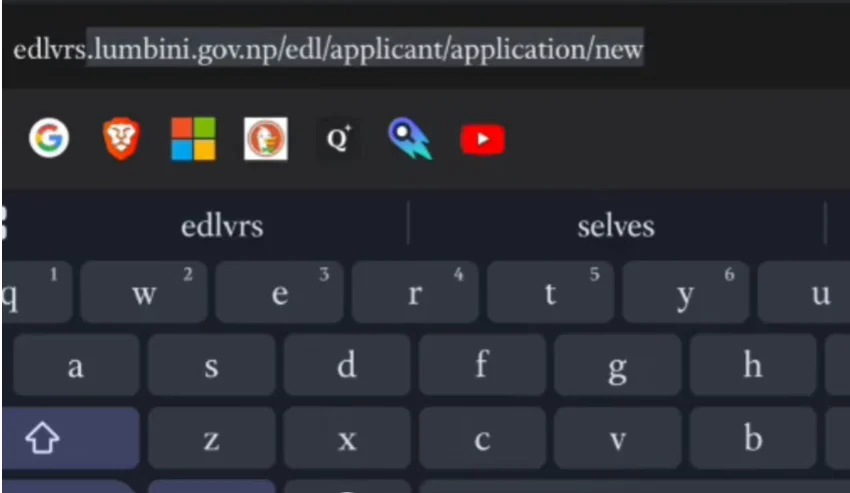
Check the official portal address
Step 1Open the Provincial eDLVRS Portal
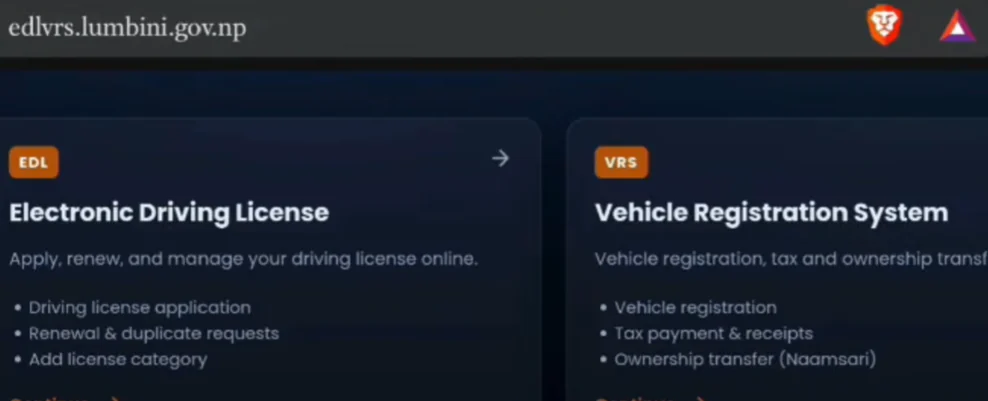
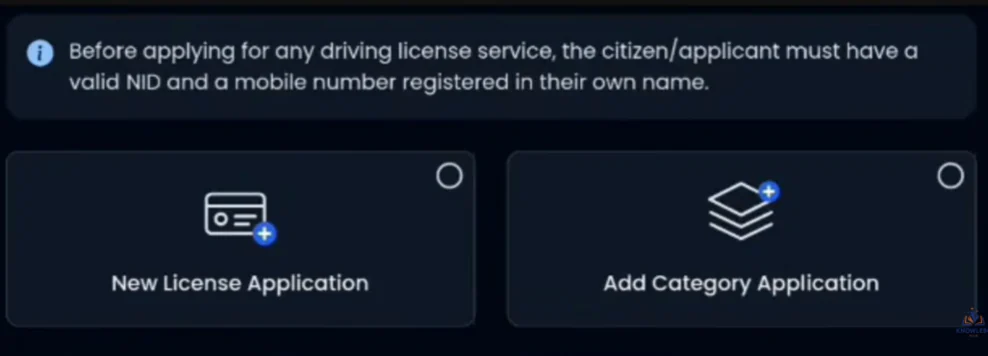
Open the official portal and go to Electronic Driving License. Then select Add Category Application or the category-addition option shown there.
For Lumbini, open the official Lumbini eDLVRS portal. For Bagmati, use the Bagmati eDLVRS portal. If you are applying elsewhere, use the portal linked by your transport office.
Step 2Enter Your License Details
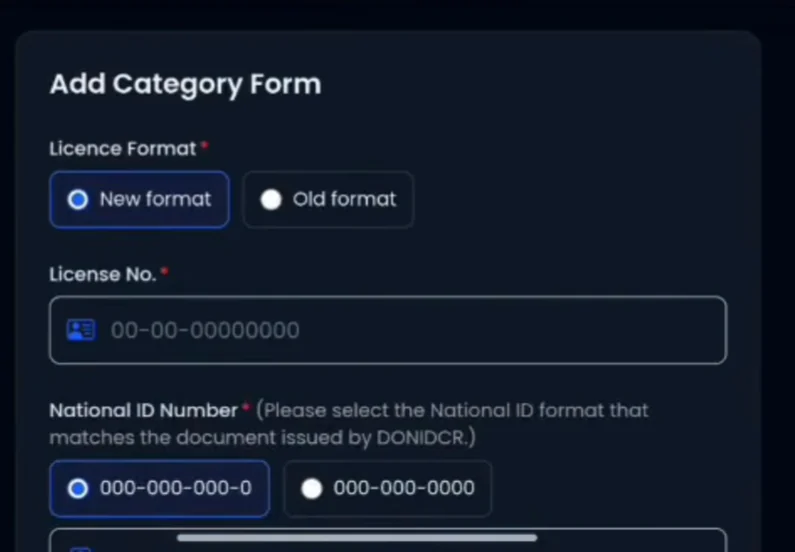
Choose the correct license-number format if the form offers old and new formats. Enter your existing license number carefully.
Then fill in the identity details requested on the screen. These may include your National ID number, National ID image, date of birth in AD and email address. Use the date format shown on the form. Check the upload instructions before selecting your document image.
Step 3Verify the OTP
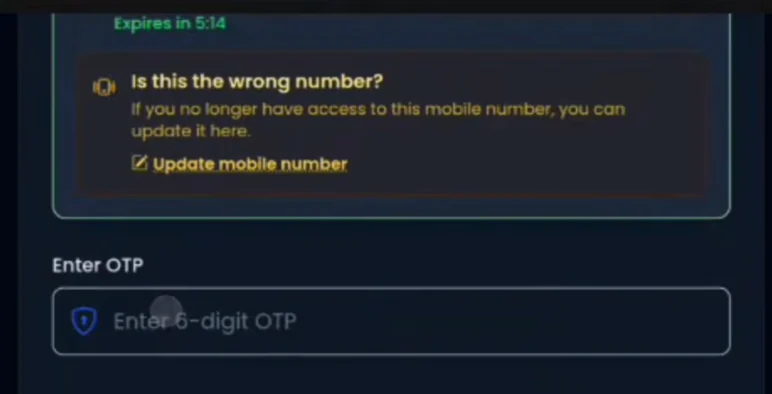
Click Continue and check the verification channel shown by the portal. Enter the OTP and select Verify OTP.
Your license details should then appear. Check your name, license number and existing categories before clicking Proceed. If you cannot access the registered mobile number, use an official contact-update option where available or ask the office for help.
Step 4Select the Category You Want to Add
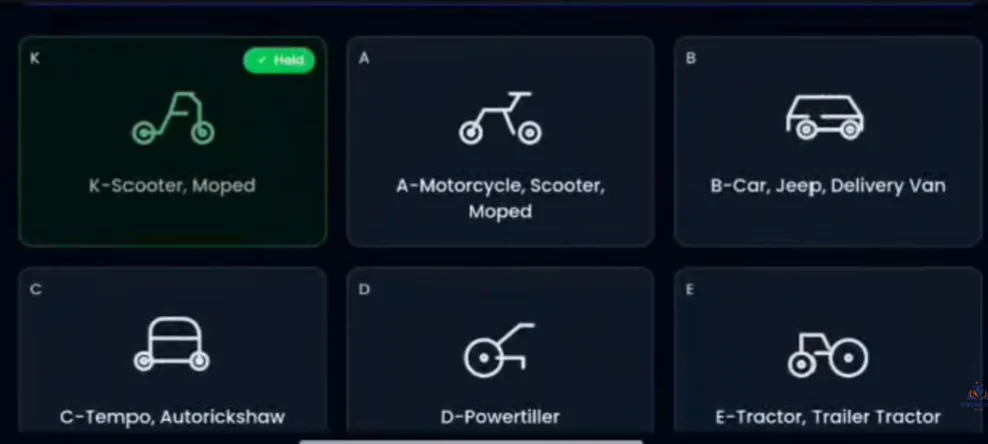
Choose the vehicle category you want to add. Read its code and description before submitting.
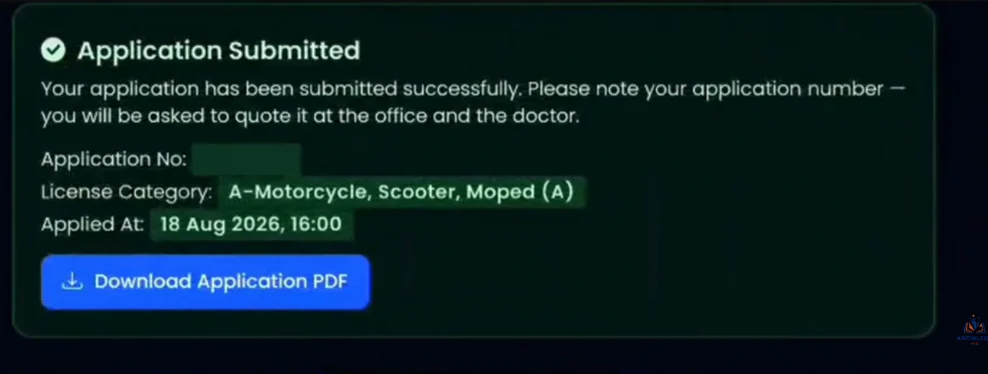
After the application is submitted, download the application PDF.
Save your Application ID and tracking link. You will use them to reopen the application and complete the remaining steps.
Step 5Complete Your Medical Examination
Select Proceed to Medical, where available. The portal may show approved medical providers by location.
Visit an approved provider with your Application ID and identification. After the examination, the provider may need to upload your report before the next stage opens. Pay the medical fee currently shown for the service.
Step 6Get Office Approval
Select your transport office from the available list and submit the application for approval.
You can return through the saved tracking link. Where available, you can also open Application Tracking, enter your Application ID, verify the OTP and select Continue Application. If the office asks for another document or a visit, complete that requirement before moving forward.
Step 7Pay the Test Fee
Once the payment stage opens, select Generate Payment Voucher if shown. Check the amount, office and voucher validity. Then select Pay Now and use one of the available payment methods.
Keep your payment receipt. If money leaves your account but the portal still shows unpaid, check the transaction status before paying again.
Step 8Book Your Trial and Download the Admit Card
If online booking is available, choose a date and time, confirm the booking and download your admit card. Some offices publish the trial schedule separately. Follow the date, centre and reporting time assigned to your application.
Take your admit card, payment proof and the original documents requested by the office.
Step 9Complete the Process After Passing
After your pass result is updated, follow the final fee and approval instructions. Generate the payment voucher if the application asks for one.
When the process is completed, check the category field in your updated license record. Make sure the category you added appears correctly.
Do You Need Another Written Exam?
Existing license holders generally do not need another written examination for category addition. However, Thulobharyang’s published FAQ gives an exception where the earlier category was obtained without a written test.
You still need to take the practical test required for the category you are adding. Follow the examination stages assigned to your application.
How Much Does Category Addition Cost?
Your total may include more than one payment.
| Fee | What it is for |
|---|---|
| Medical fee | Required health examination |
| Application or examination fee | Application processing and test registration |
| Trial-centre charge | Vehicle or test-site use, where charged |
| Category-addition fee | Adding the approved category to your record |
Check the service name on each voucher. New-license fees, renewal fees and category-addition fees are different. Use the current amount shown in your application and official office instructions. A fee paid in one province may not be the amount payable in another.
What Happens After the Category Is Added?
Check your updated record for the new category, personal details and expiry date. Adding a category does not mean you should assume your license has also been renewed.
Save the available confirmation and payment receipts. You can use our driving license print checker to search the published records covered by our database while waiting for the updated card. Confirm that the physical card has reached your office before travelling to collect it.
Common Problems When Adding a Category
| Problem | What you can do |
|---|---|
| License details are not found | Check the number, selected format and date of birth |
| OTP does not arrive | Check the registered contact details and available resend option |
| Document upload fails | Check the file type, size limit and image clarity |
| Medical stage stays pending | Ask whether the provider has uploaded the report |
| Office approval is pending | Check for a document request or further instruction |
| Payment is not updated | Keep the transaction reference and check the payment status |
| No trial date is available | Follow the office’s next booking or examination notice |
If you fail the practical test, check the driving license retrial process before submitting a fresh category-addition application.